Add content
Use campaigns created in iMediaGO or upload your own images and videos.

Group campaigns, images and videos into playlists to control what content appears, in which order and on which screens. With iMediaGO, you can organize your content, keep it playing continuously and update your digital signage playlists from one platform.
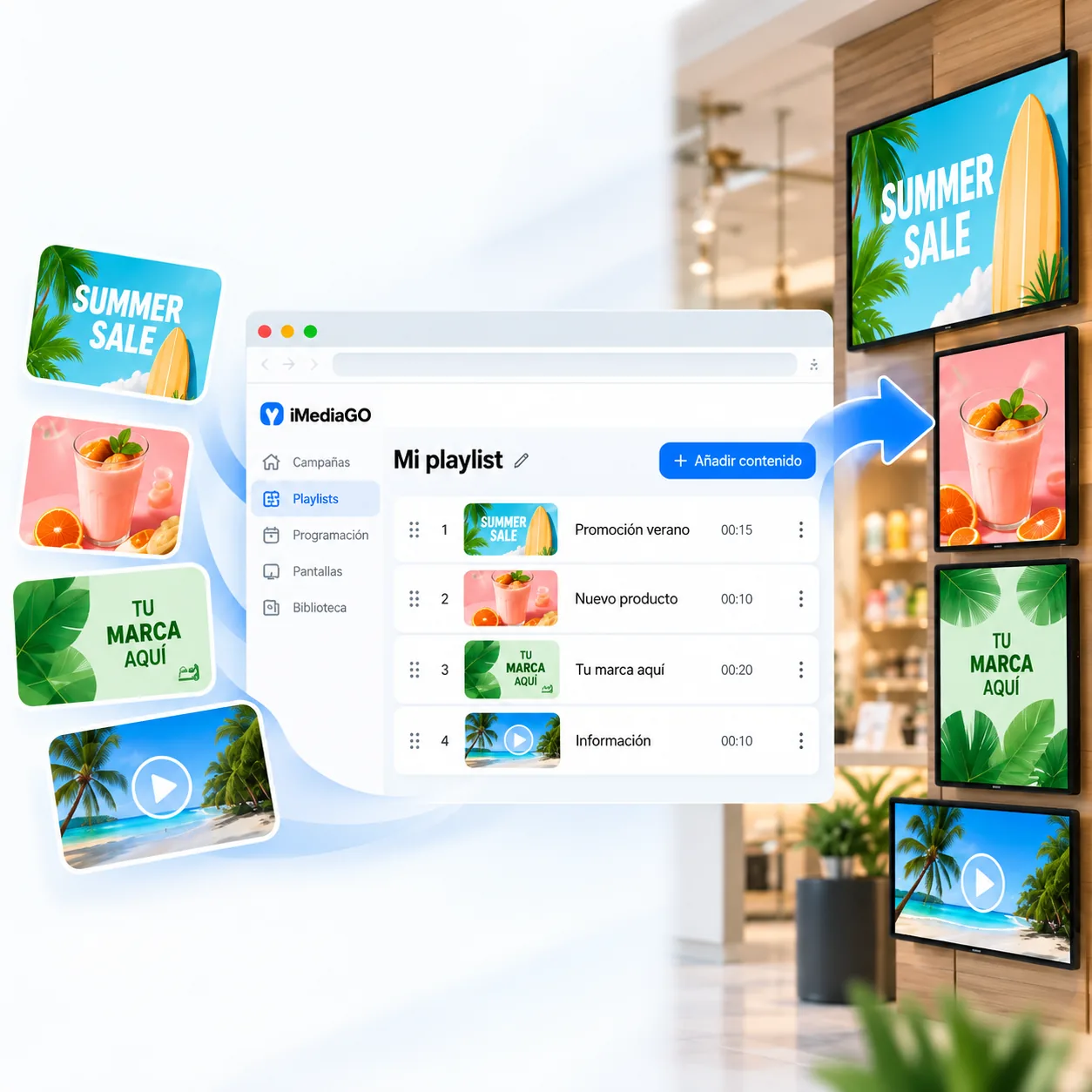
Bring campaigns, images and videos together in one playlist to display different types of content on your digital screens. Combine promotions, products, services and customer information without having to create a separate campaign for every message.
Organize your messages in one playlist and control the order in which content appears on your screens.
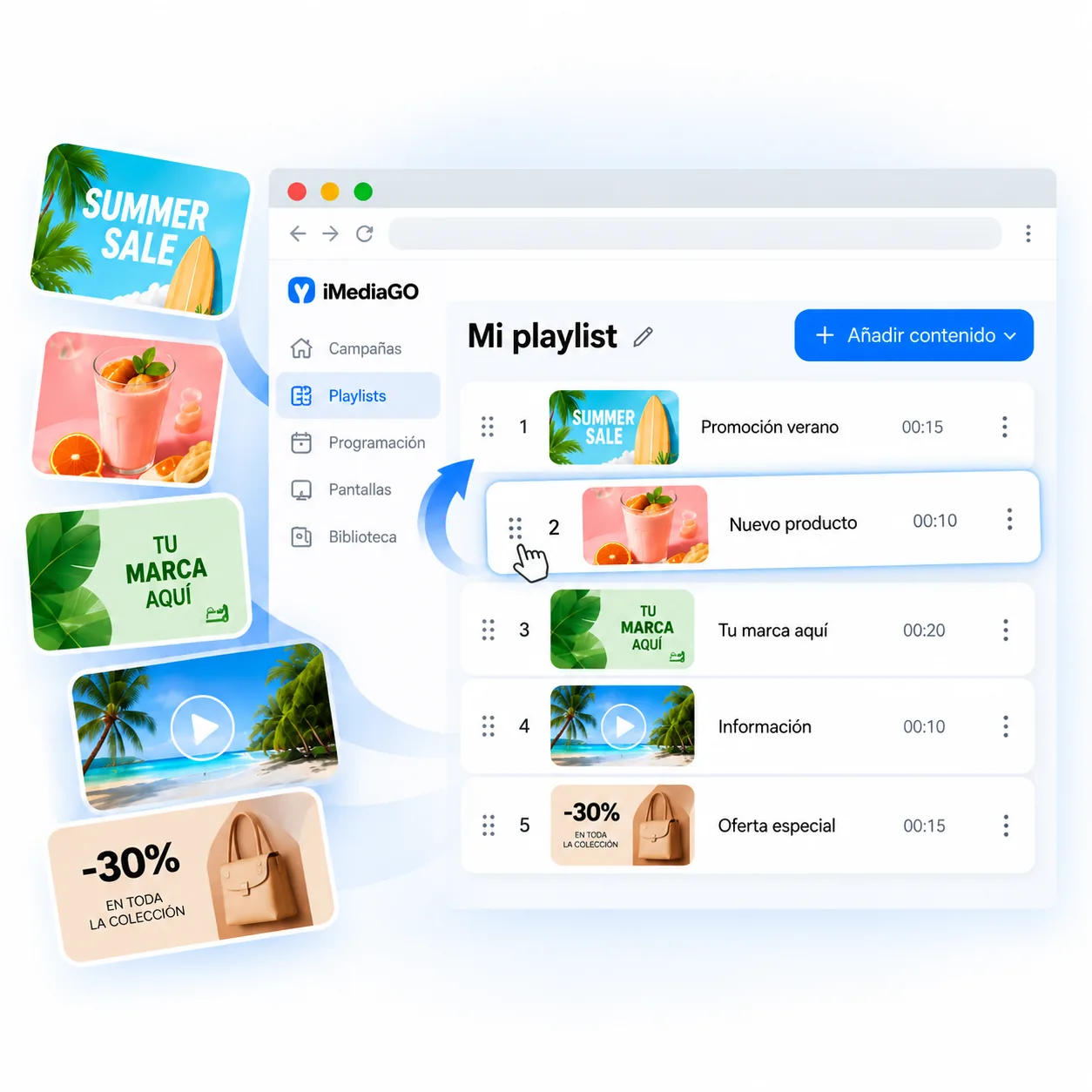
Add new content, rearrange the playback order or remove items you no longer need. With iMediaGO, you can update your playlists without rebuilding them from scratch.
Keep your promotions, product information and other messages up to date as your needs change.
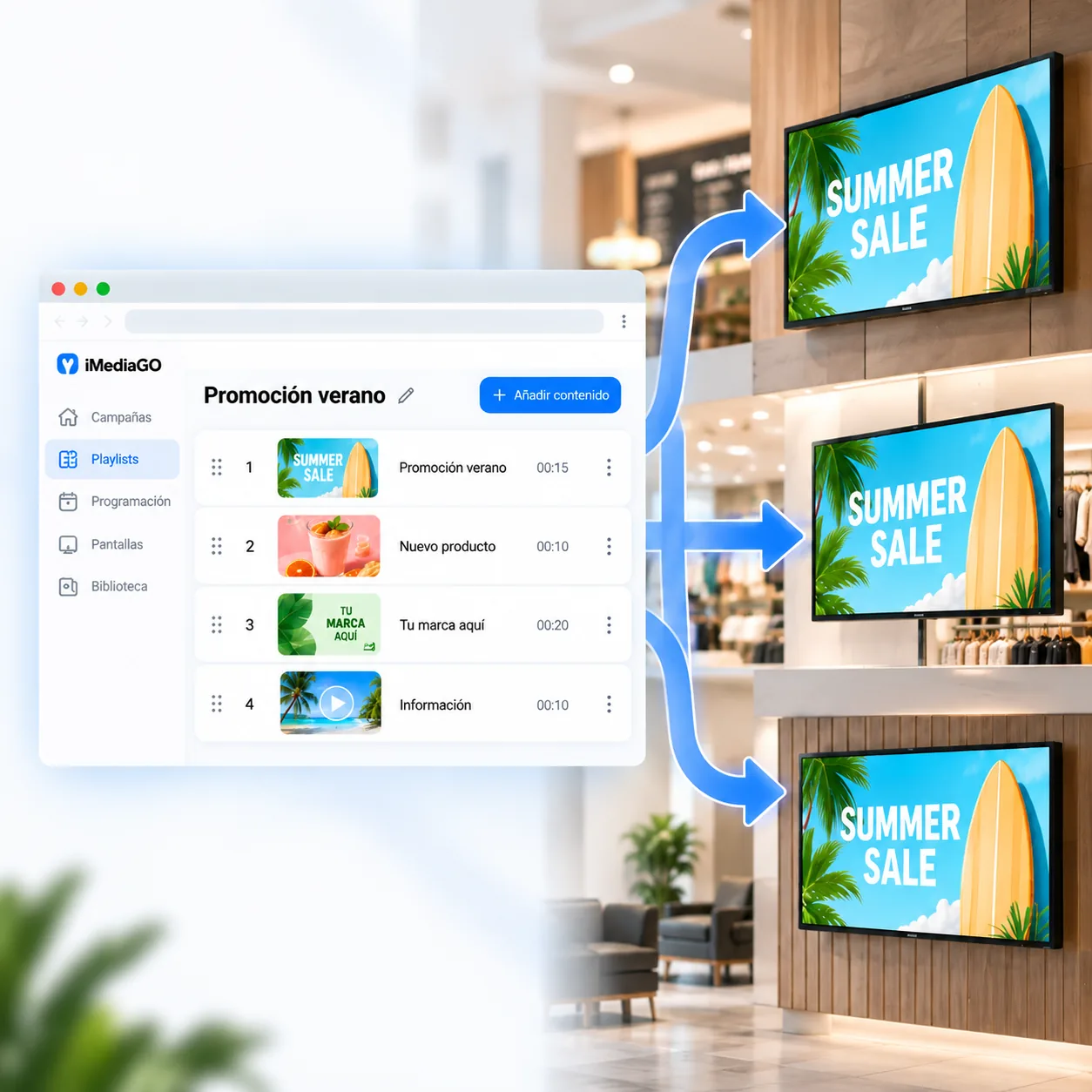
Use a playlist on a single screen or share it across multiple screens to display the same content in different locations. Organize your campaigns, images and videos once, then choose which screens should play them.
When you need to change a promotion, update a message or add new content, simply edit the playlist without creating a separate version for every screen.
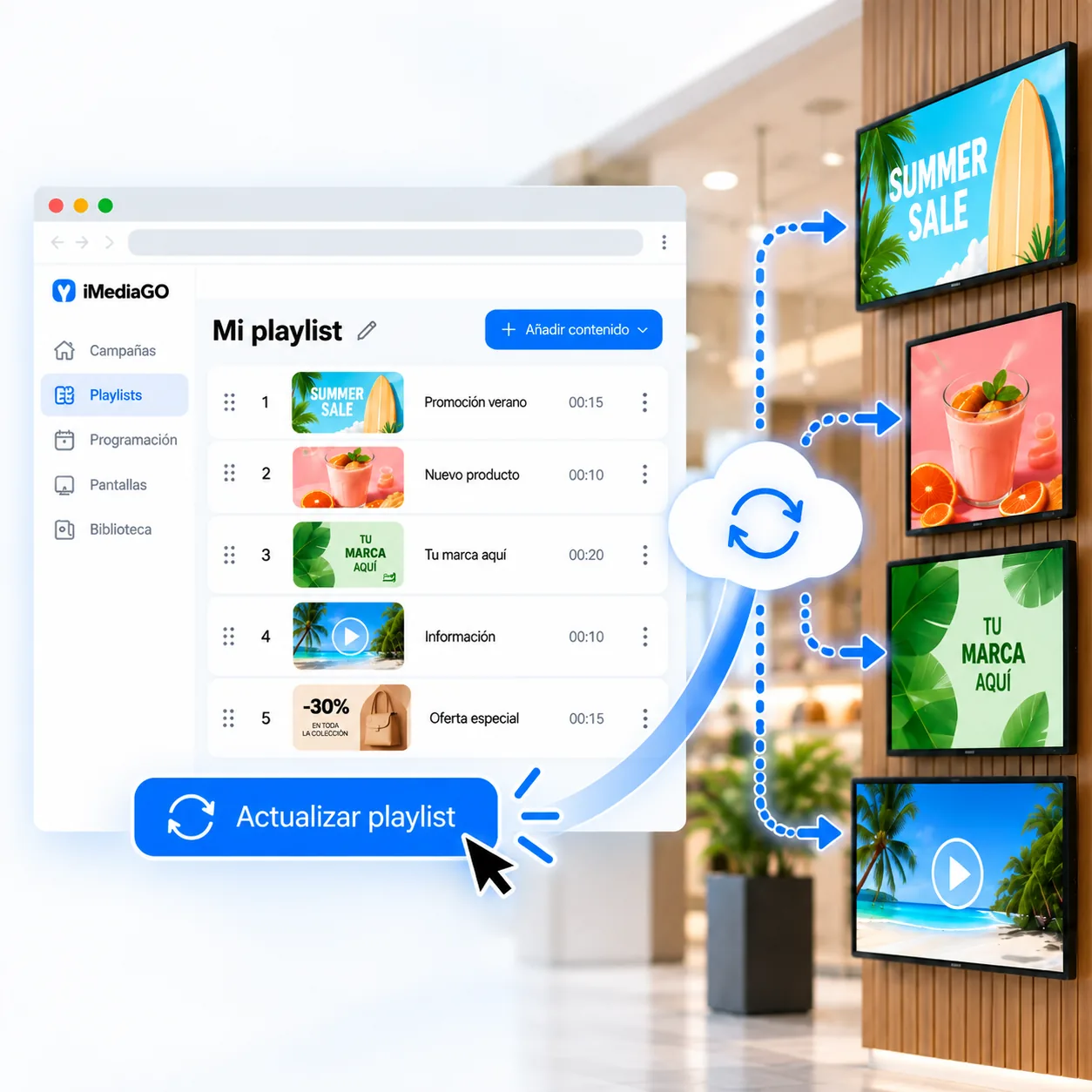
Update your playlists remotely from iMediaGO, without visiting each screen. Add promotions, replace images or videos, and change your messages from one place.
Your changes are reflected on the screens using that playlist, helping you keep your content up to date wherever you are.
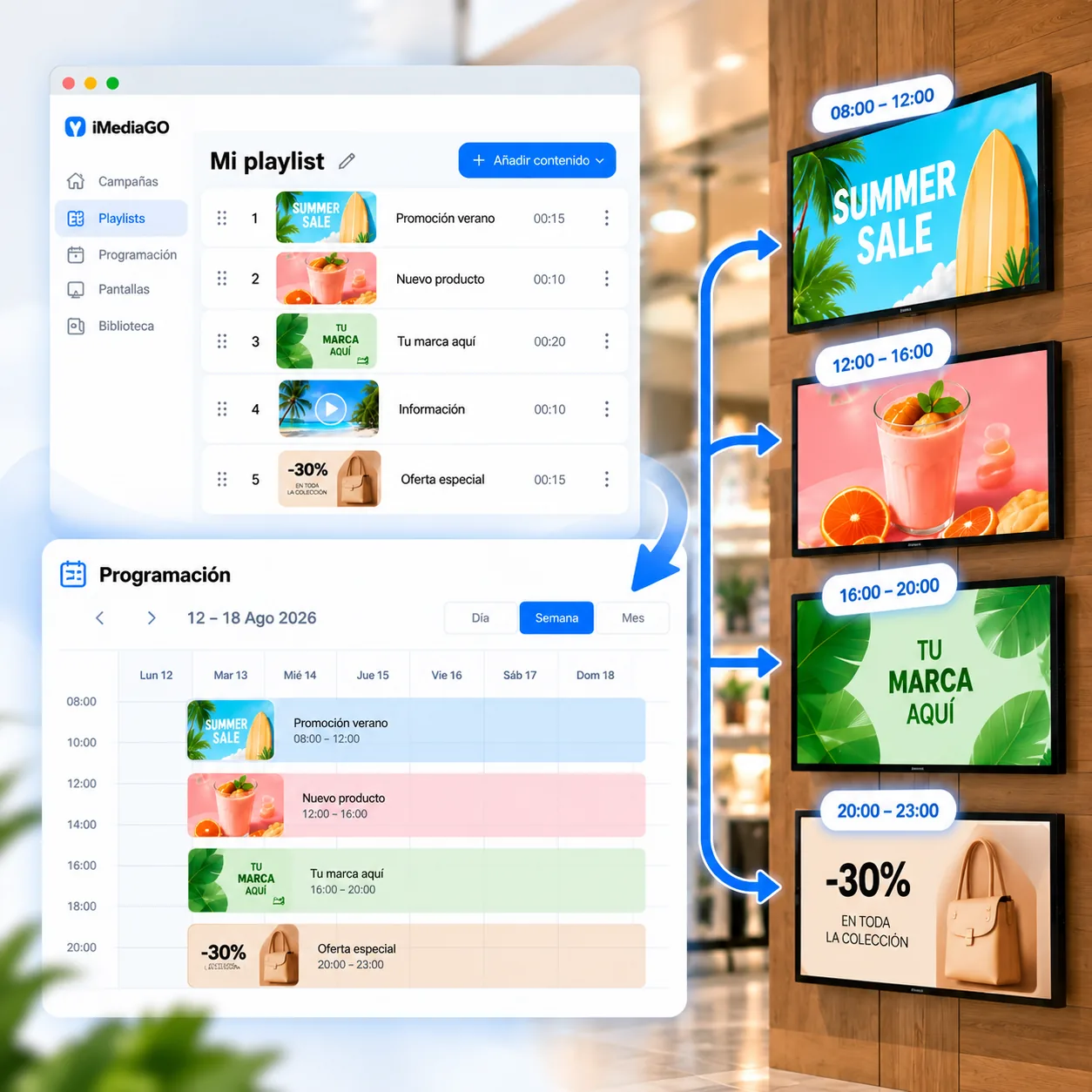
Once you’ve created your playlist, you can decide when it should appear on your digital screens. Combine your playlists with iMediaGO’s scheduling tools to display promotions, advertisements or information on the days and at the times you choose.
Prepare your content in advance and keep your screens up to date without manually changing what’s playing.
Create a playlist and prepare it for your screens in four steps.
Use campaigns created in iMediaGO or upload your own images and videos.
Bring your campaigns, images and videos together in one playlist. Choose where and when it plays, then manage your content from iMediaGO.