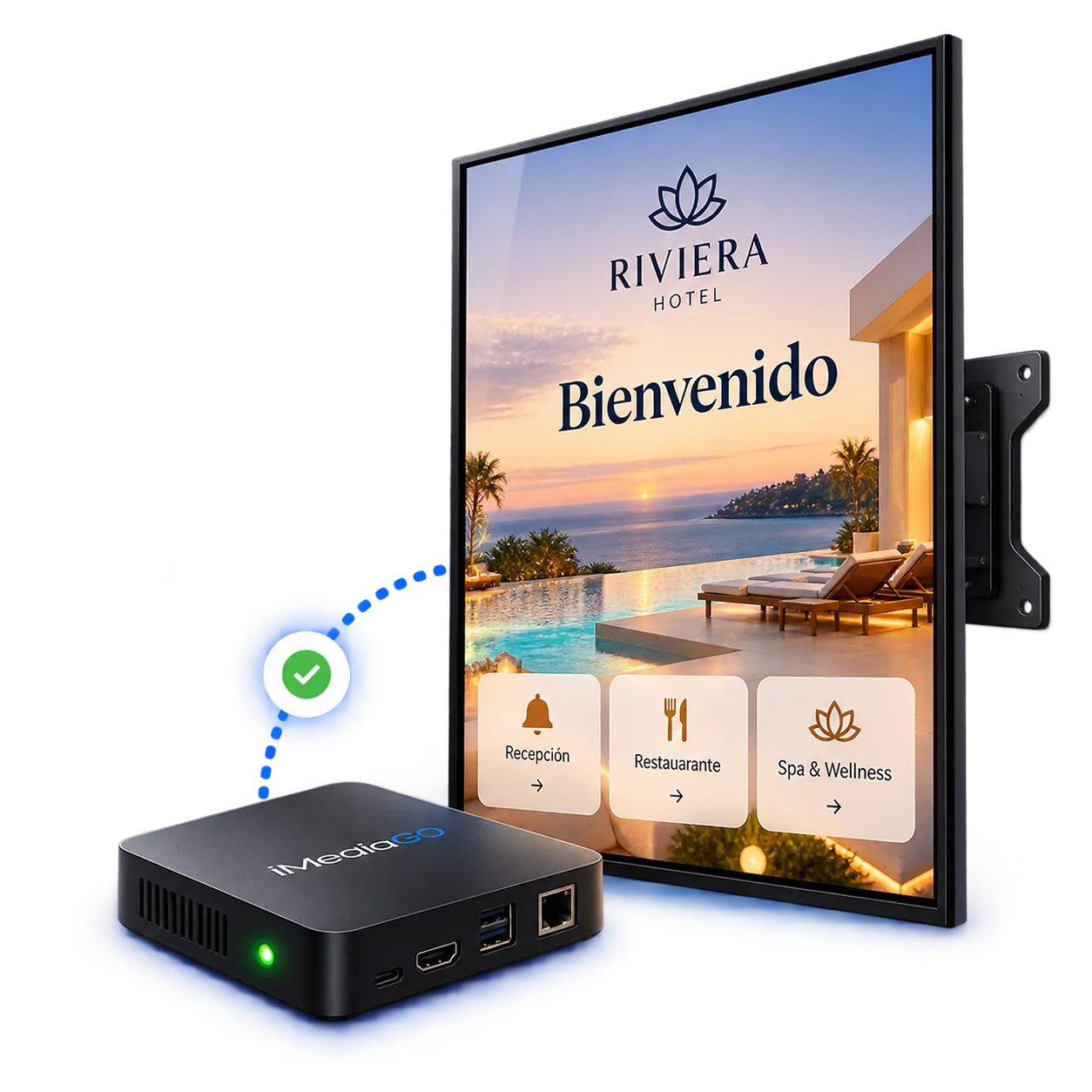
Connect your screen
Link it with iMediaGO using the Player that best fits your installation.

Organize your screens, assign content and control how they run from iMediaGO — whether you have one screen or manage several locations.
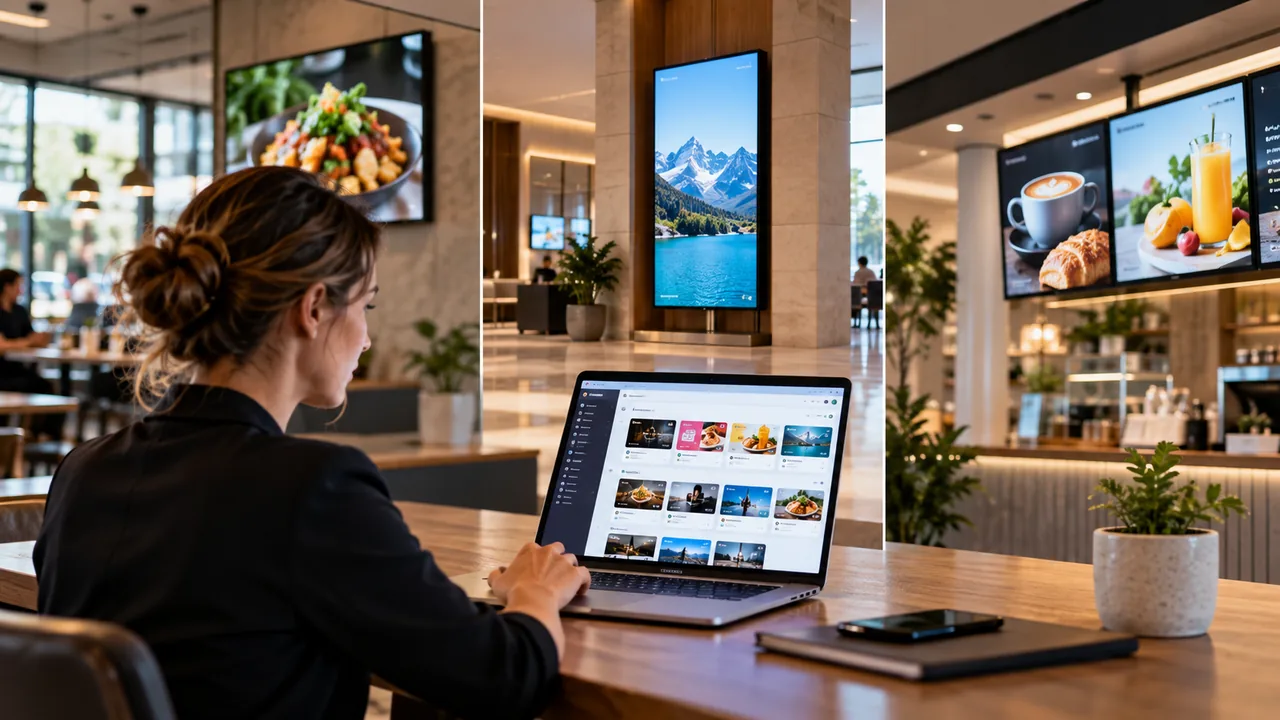
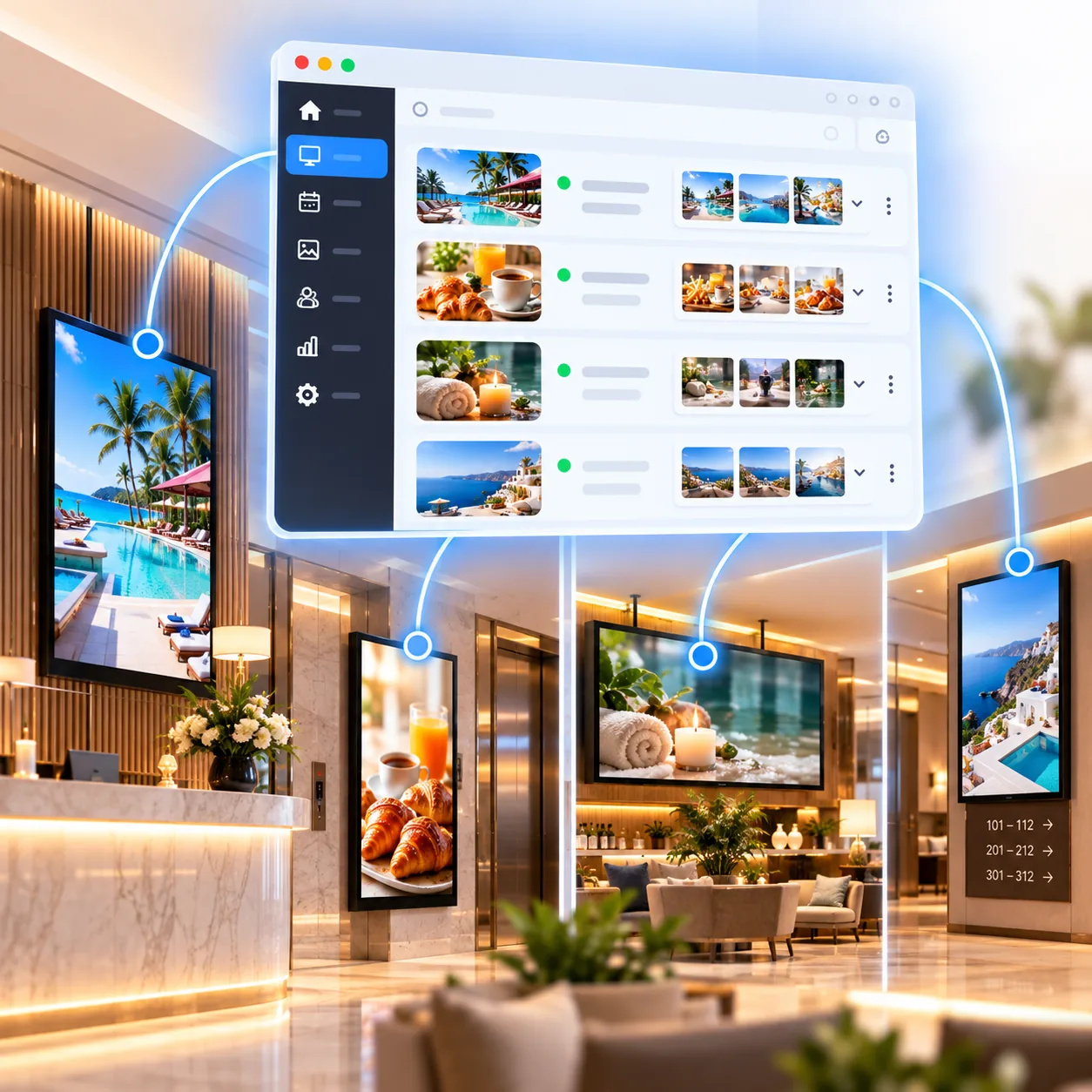
You don't need to manage each device separately.
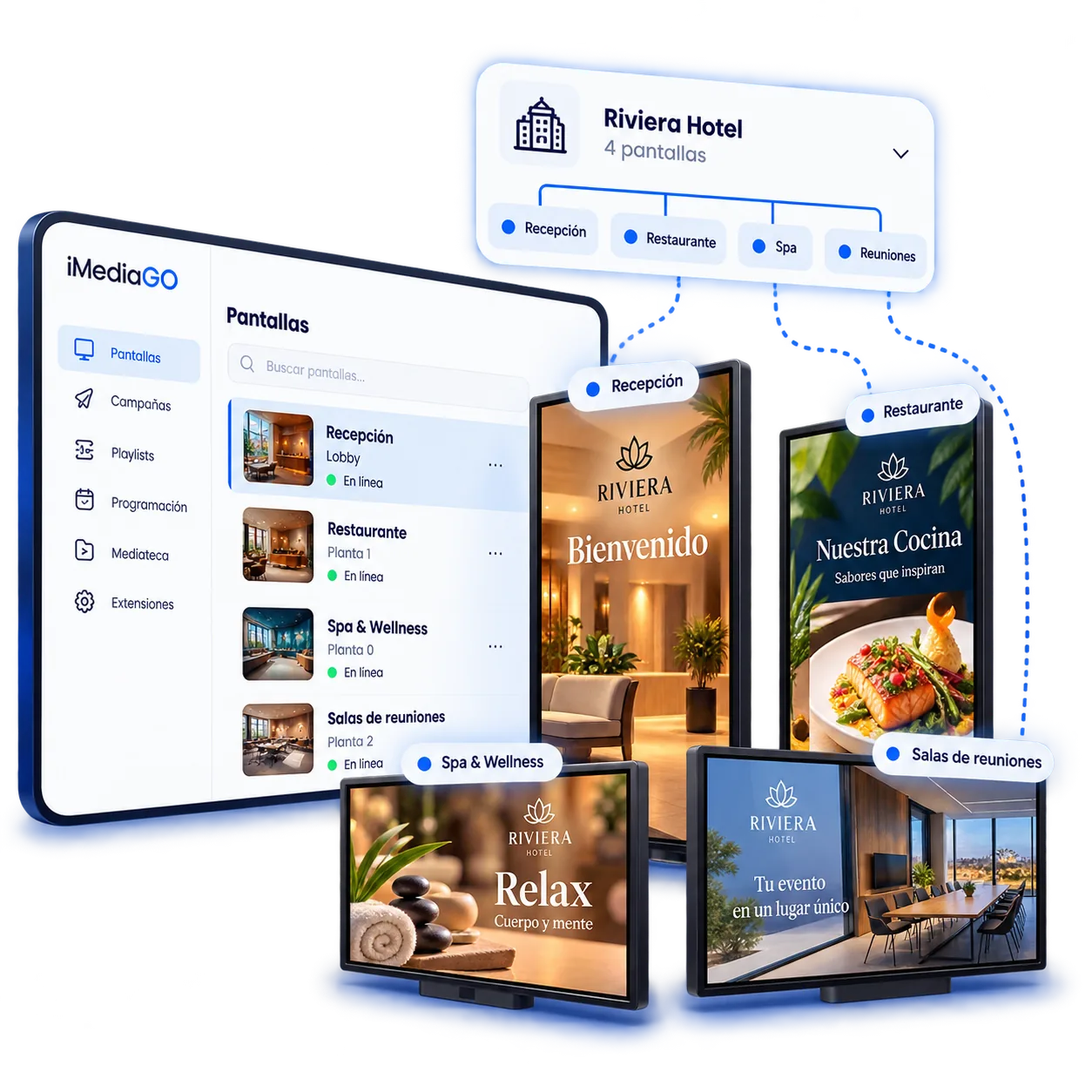
View your screens in iMediaGO, check their assigned content and manage how they're organized — all from one place.
A simple way to keep control as you add more screens.
Screens → Content → Control
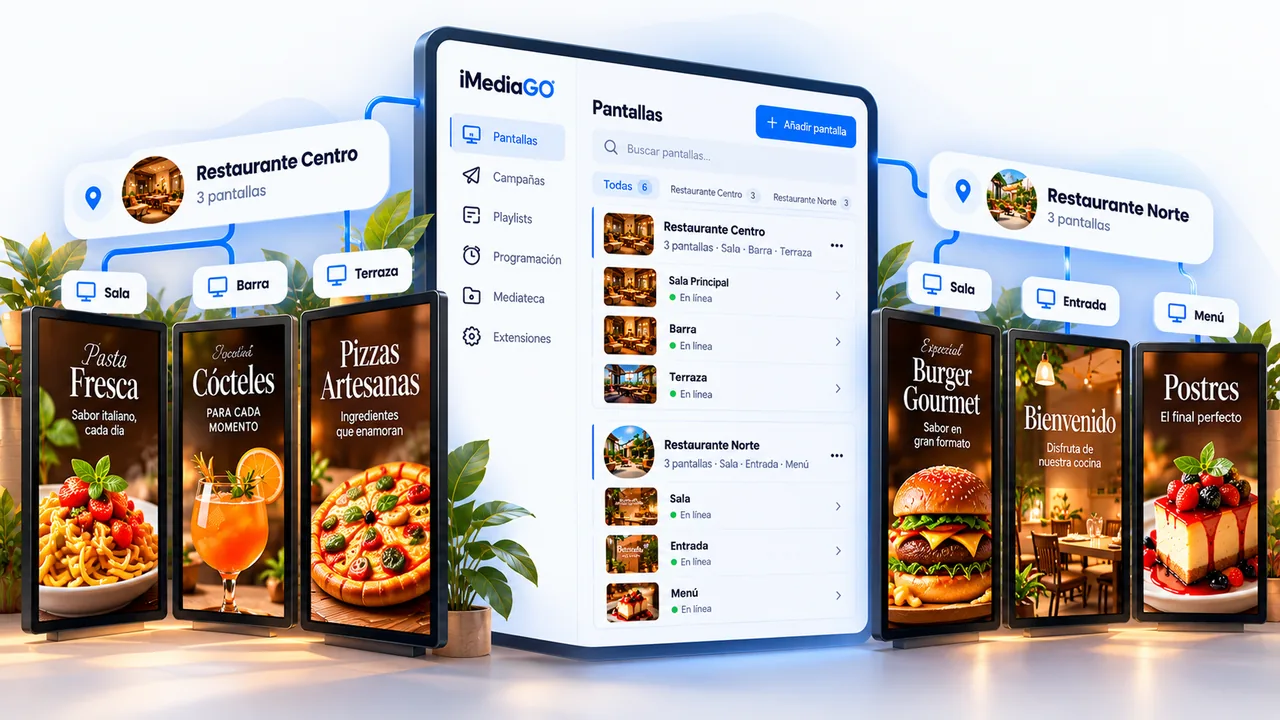
Organize your screens into groups that reflect how your business and locations are structured.
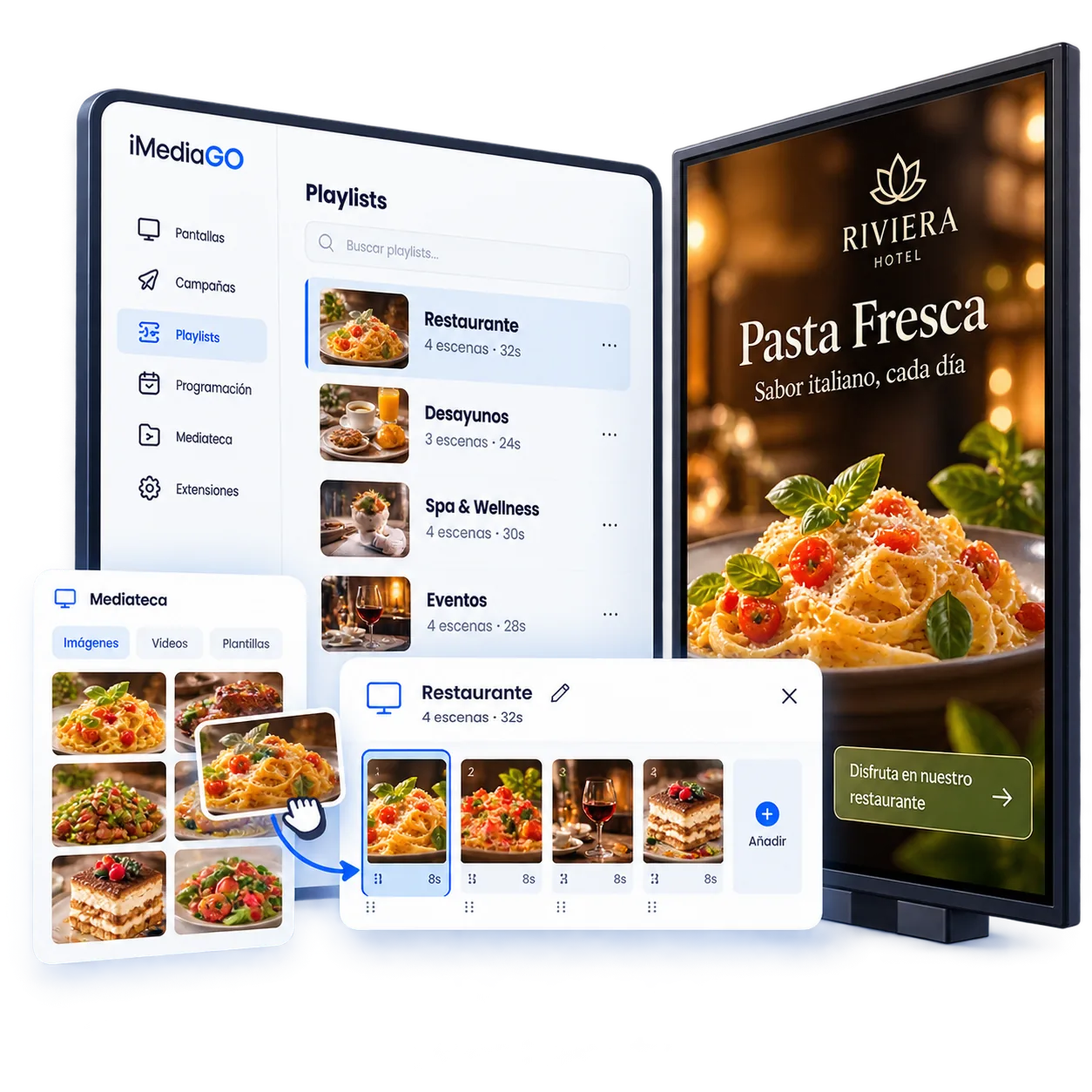
Not all of your screens have to play the same thing.
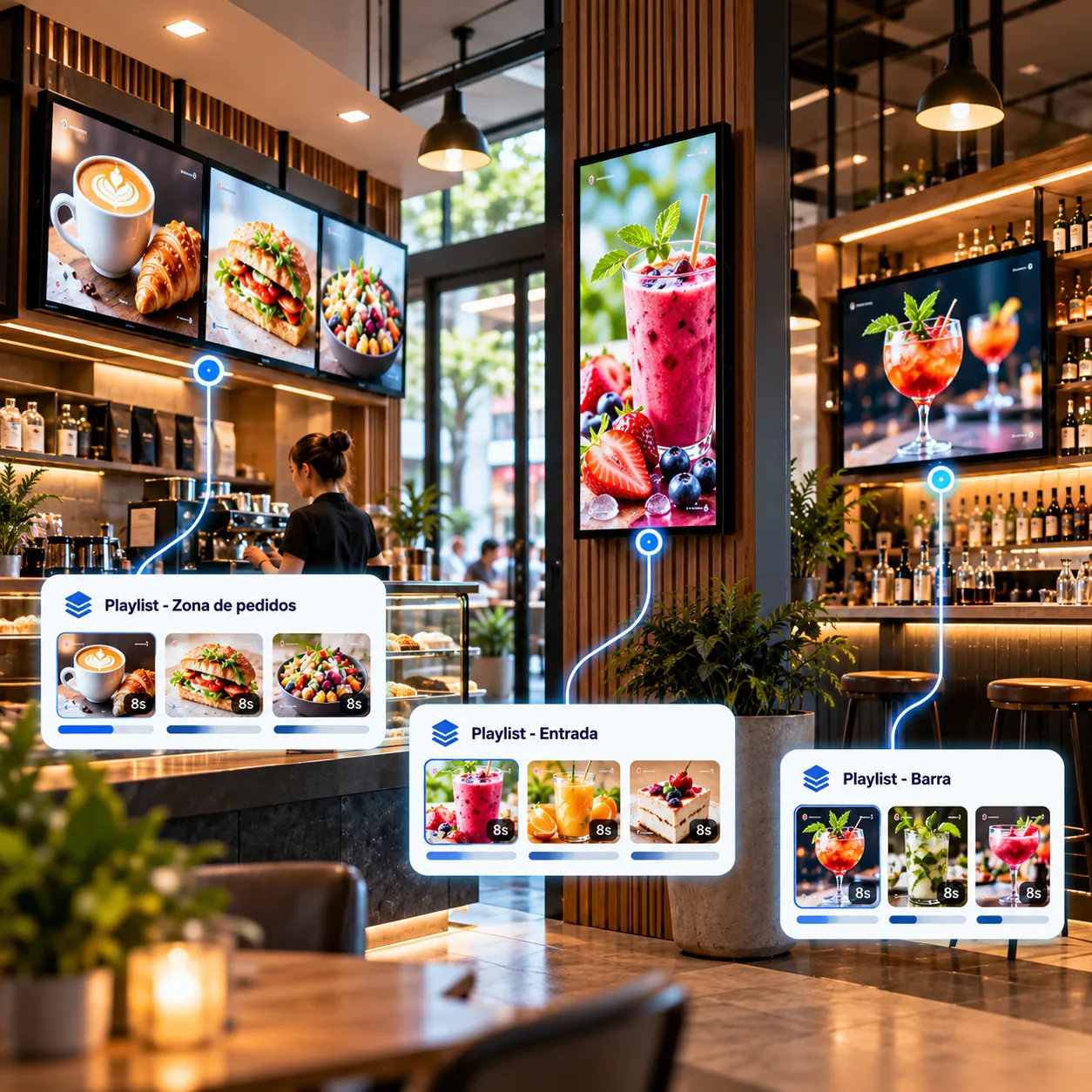
Assign content based on each screen's location and purpose. Use the same playlist across multiple screens or choose different content for each space.
Menus at the ordering counter. Promotions at the entrance. Events at the bar.
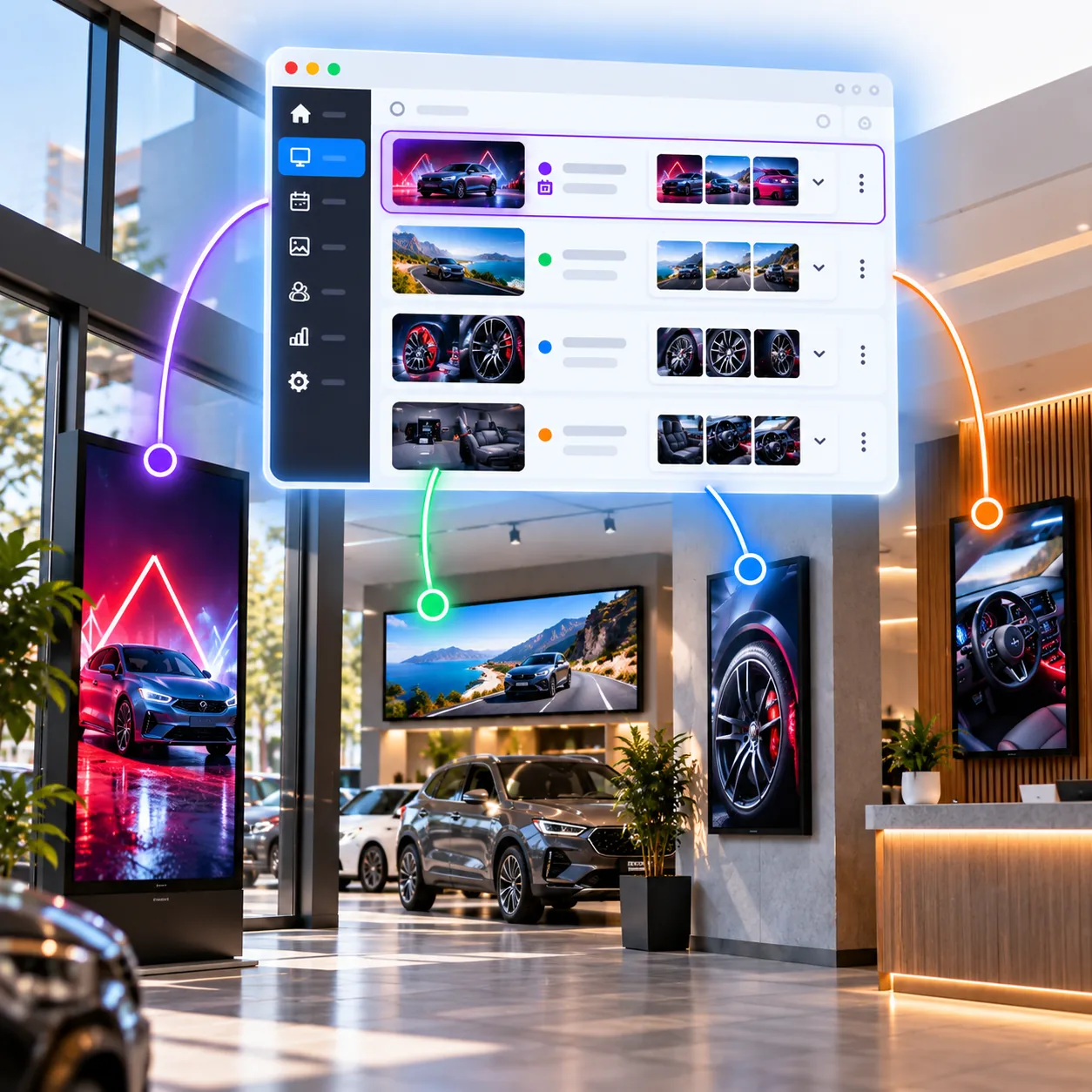
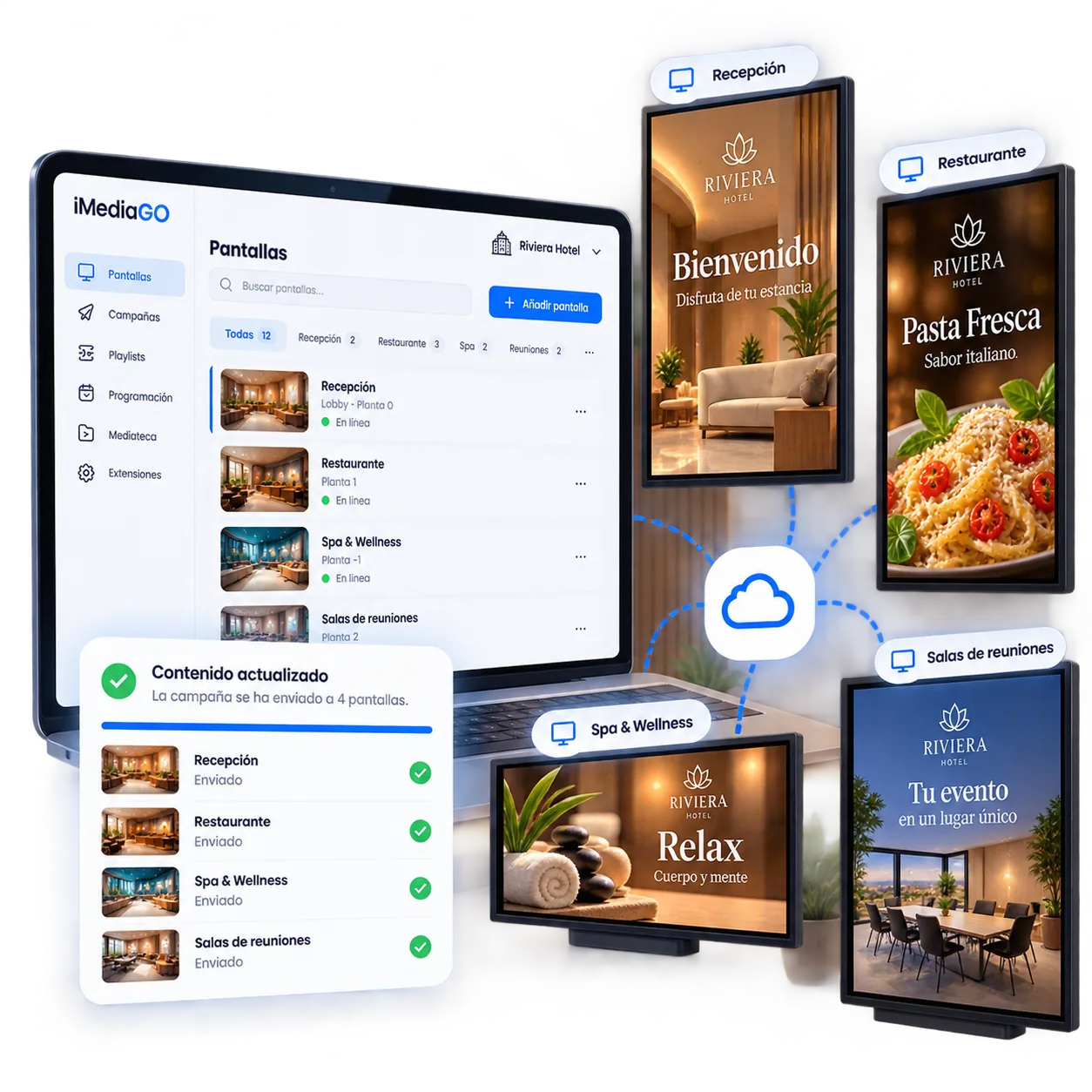
Manage changes from iMediaGO without having to physically access each screen.
Update content, change assigned playlists or reorganize your screens from iMediaGO.
Especially useful when managing multiple screens across one or more locations.
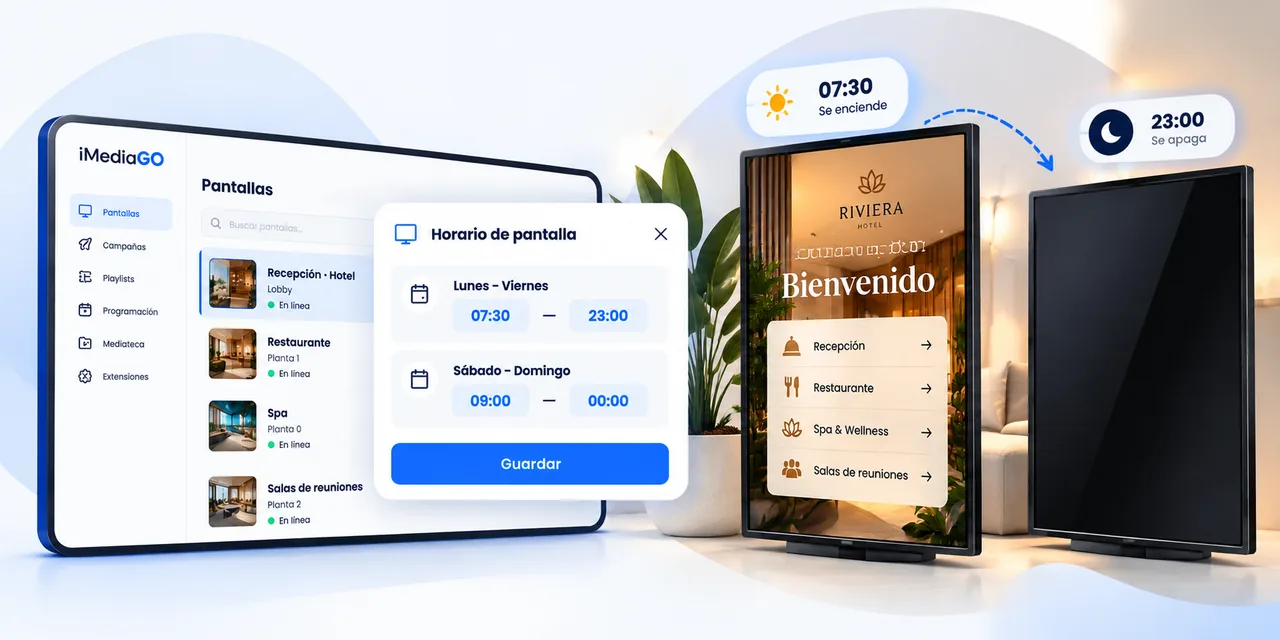
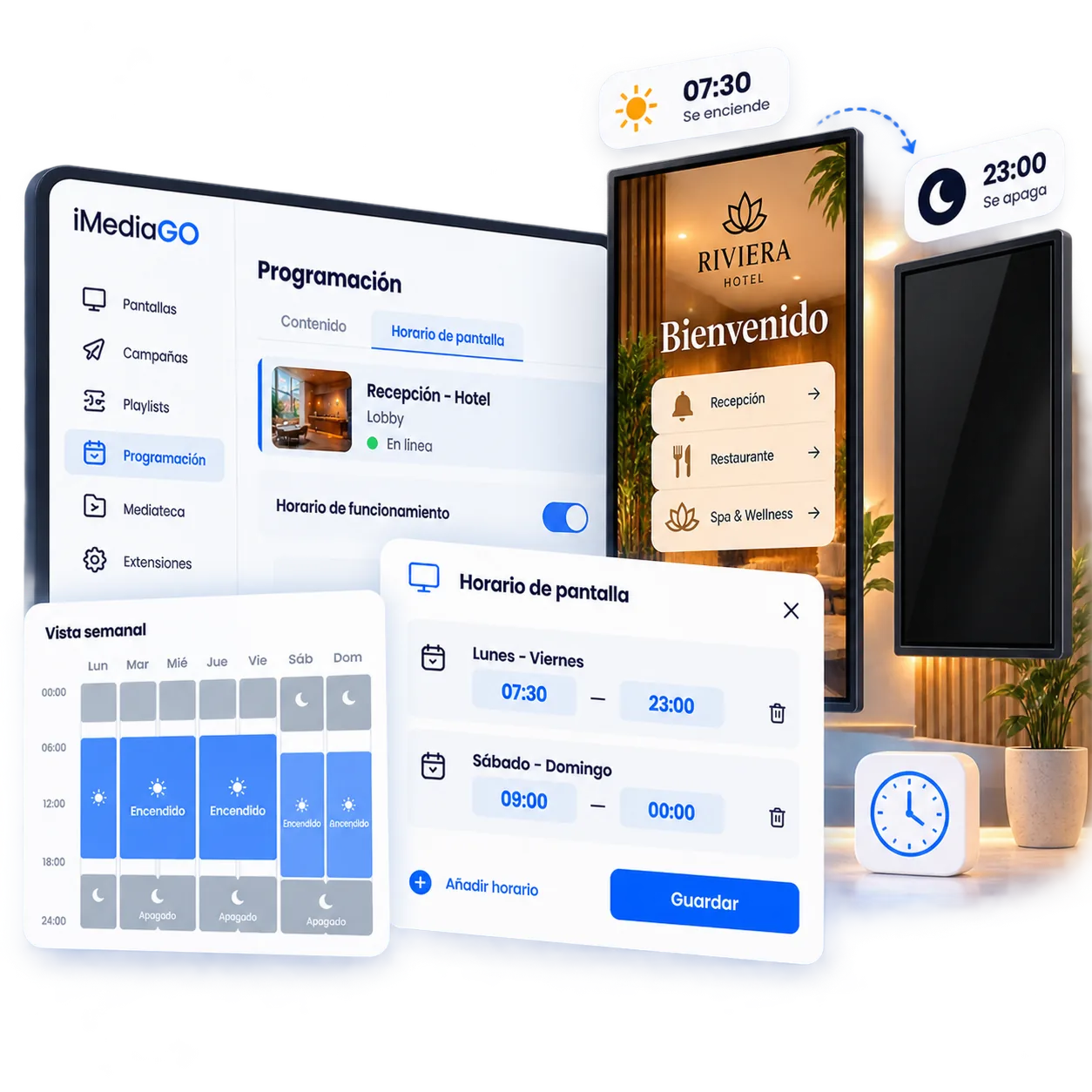
Configure the schedule once and avoid having to turn the screens on or off manually every day.
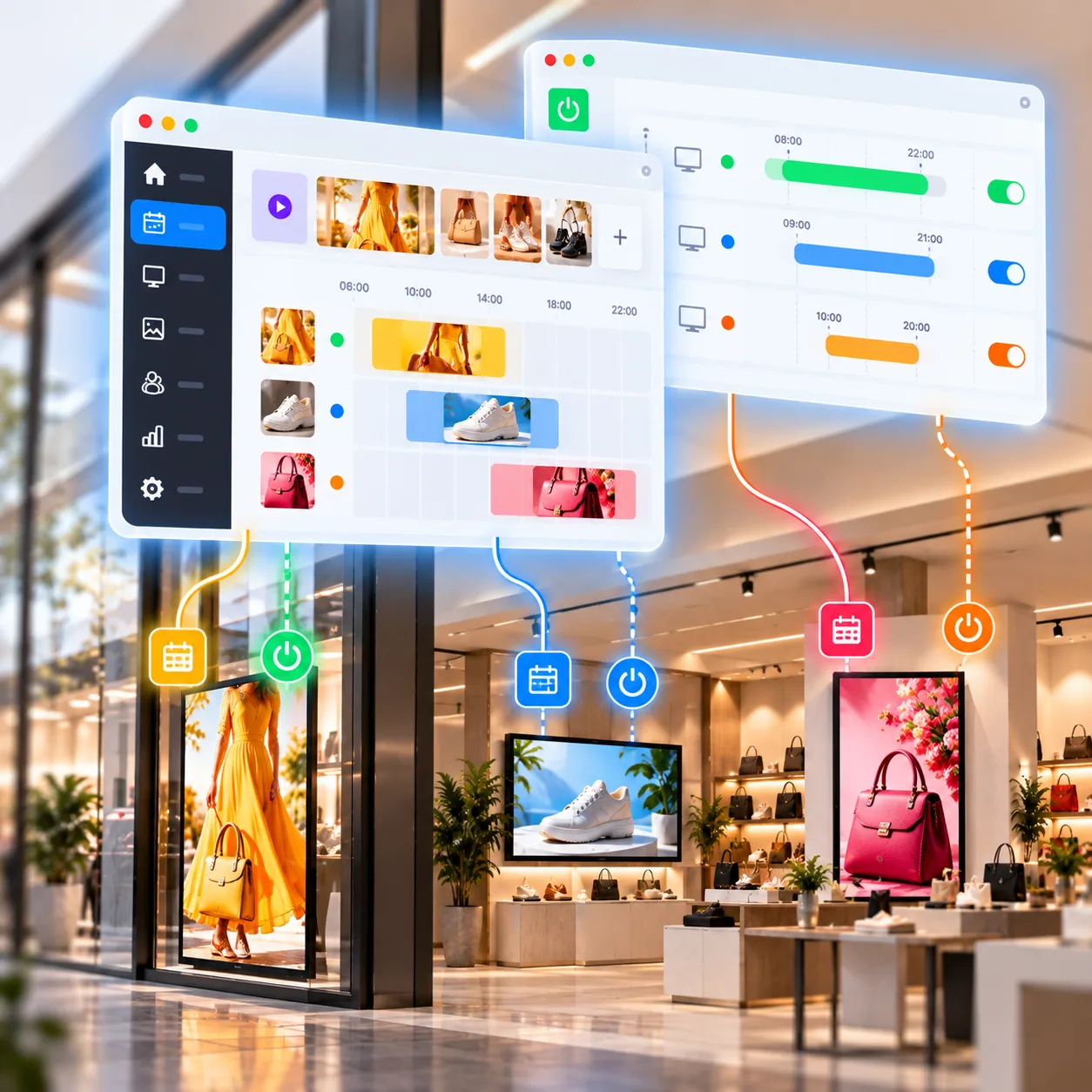
What your screens show and when they run are two different things.
Use content scheduling to change playlists, promotions and campaigns throughout the day.
Use screen scheduling to control its power on and off times.
Two levels of scheduling to manage the whole experience from iMediaGO.
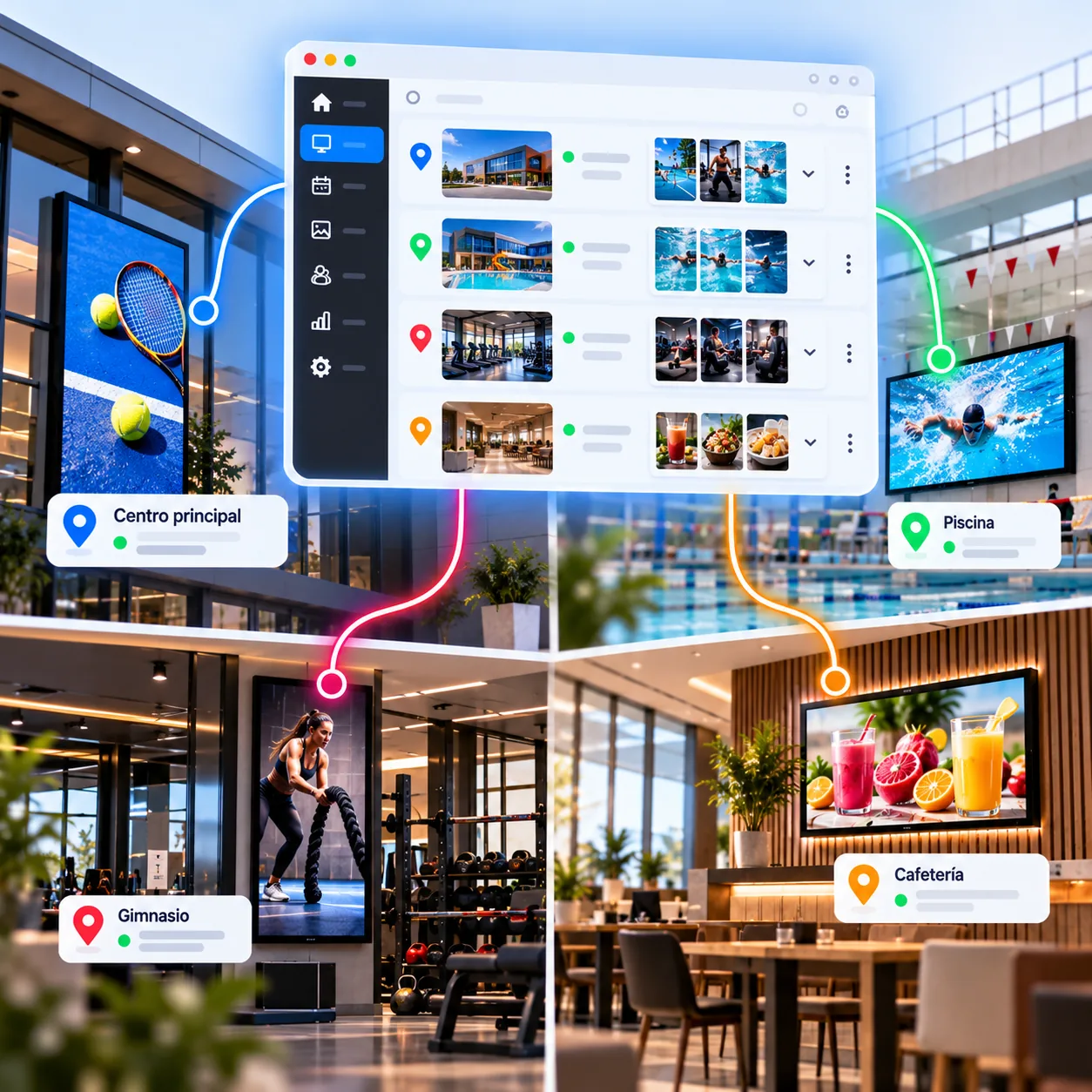
Keep screens across different venues and locations organized without managing each site separately.
Group screens as you need and make changes from a single place.
From a small installation to a network of screens distributed across different locations.
To connect a screen to iMediaGO you need a Player.
You can use iMediaGO Player with Raspberry Pi, install iMediaGO on compatible Android devices, or play via Web Player directly from a browser.
Once connected, the screen becomes part of your installation and you can manage it from the platform.
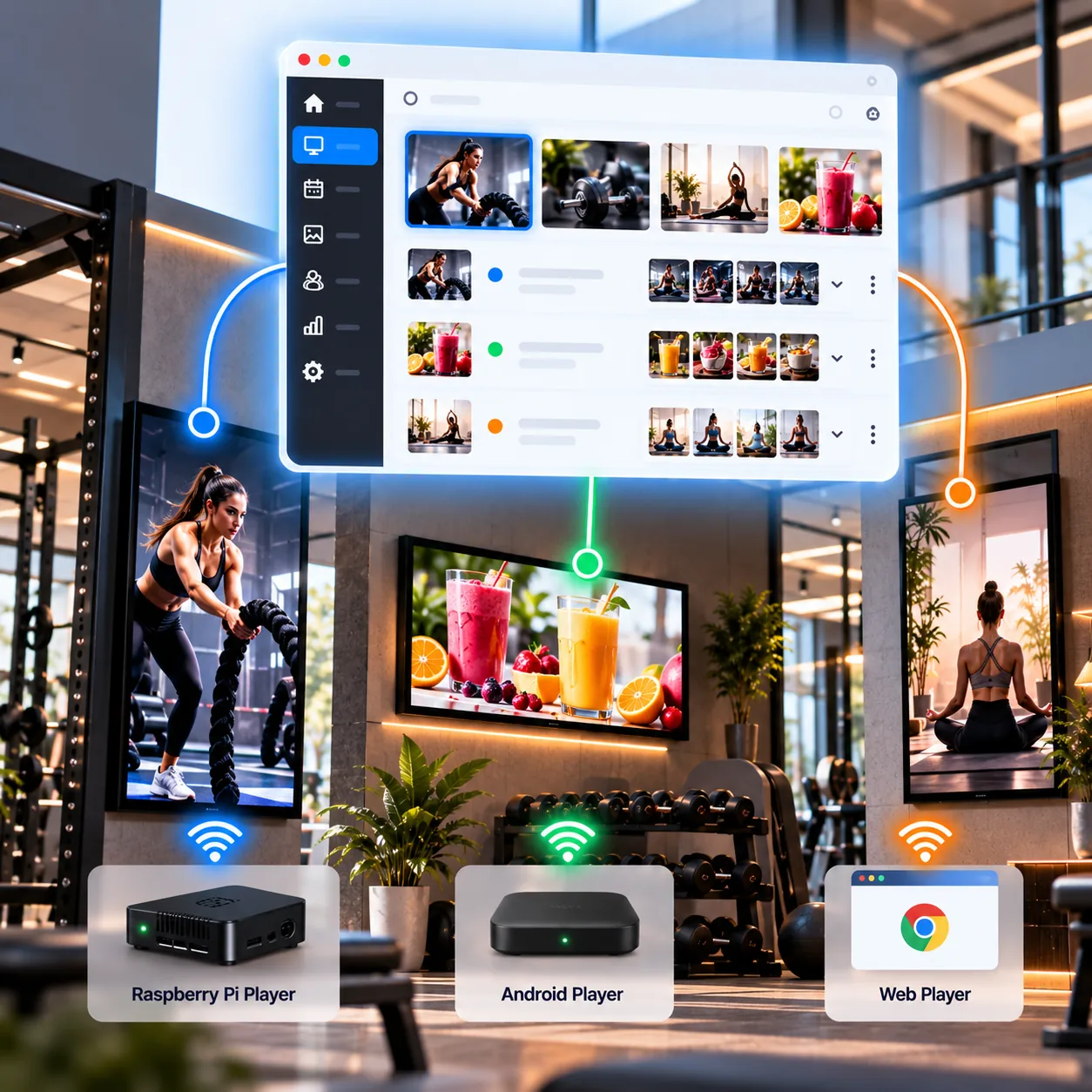
Connect, organize and manage your screens in five steps.
Link it with iMediaGO using the Player that best fits your installation.
Organize your screens, decide what they play and manage how they run from a single place.